Splashtop Personal
SplashtopBusiness
4.512.38K Reviews
- Version
- 3.8.0.25
- Installs
- 5.00M
- Age Rating
- Everyone
Screenshots
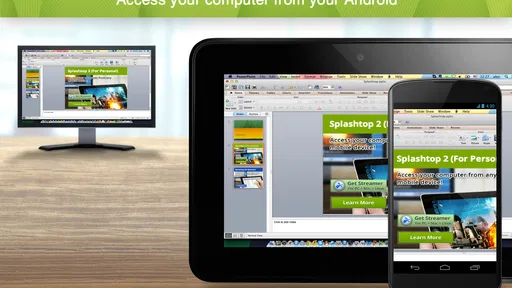
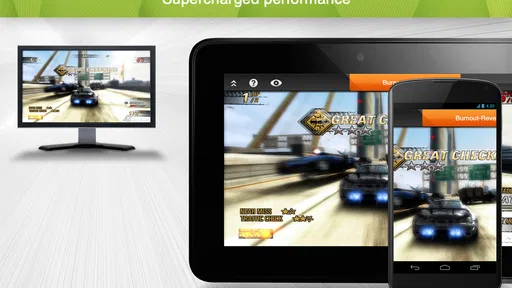
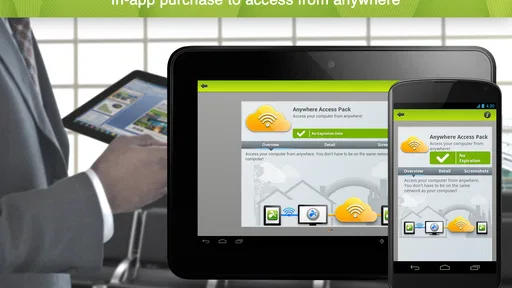
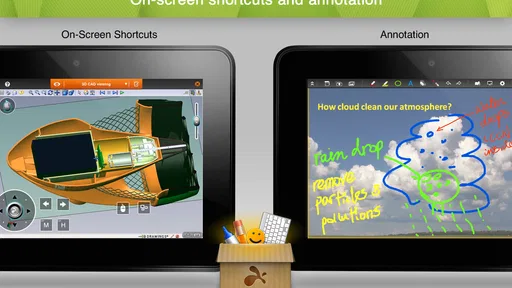
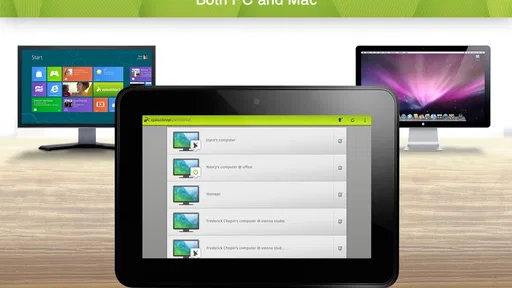
Our Review of Splashtop Personal
 Analysis by Appyee
I judge a remote-access app less by the novelty of seeing a desktop on a phone and more by whether it can save a trip back to that desktop without turning a quick task into a setup project. Splashtop Personal is aimed at that gap: it connects a mobile device to a computer, making familiar files and desktop programs reachable when I’m away from the keyboard. It makes the most sense as a practical part of a routine, not as a replacement for every way of working.
Start with the task, not the connection
Before opening a remote desktop, I’d ask what I actually need to accomplish. If the job is simply checking a document or sending a file already stored in a cloud service, a browser or cloud-storage app is usually faster and easier. Remote access earns its place when the needed item lives on the computer, depends on a desktop program, or is easier to handle in the exact environment already set up there.
That distinction helps keep the workflow sustainable. I wouldn’t connect just to browse around a desktop; I’d make a short list of the task, the file or program I need, and what “done” looks like. On a phone, that small bit of planning matters because moving through a full computer interface is less direct than using a mobile app built for one job.
Build a sensible handoff between devices
A useful routine is to leave the computer in a state that is easy to pick up remotely: keep relevant work organized, use recognizable file names, and avoid scattering active projects across the desktop. Those habits are helpful even without remote access, but they become especially valuable when the phone is acting as a small window into a much larger screen.
For example, if I’m heading out and may need a presentation, I’d make sure I know which computer holds it and where the file sits. Then, if a colleague asks for a quick correction while I’m away, I can connect, open the familiar desktop program, make the specific change, and send the result through the workflow I already use. It’s a better fit for a targeted edit than for rewriting several slides on a phone.
What the mobile screen changes
Remote access is not the same as carrying a full desktop in your pocket. A phone display compresses menus, small controls, and windows that were designed for a larger screen. I find that distinction important: the connection may work well while the task still feels awkward because the original software is not touch-first.
When possible, I’d use a tablet for longer sessions and reserve a phone for checking something, launching a familiar program, or making a brief change. A keyboard can also make text-heavy work more manageable, though it doesn’t remove the need to navigate a desktop layout. The best result comes from matching the size and input method of the mobile device to the job.
Keep access intentional
Remote access can make a home or office computer feel close at hand, so I’d treat the connection as a deliberate route into that machine. Use a security code if it suits your setup, choose a strong account password, and be mindful when connecting from a shared or public device. The app’s encrypted connections and optional security code are reassuring elements, but good habits still matter: convenience should not mean leaving access casually exposed.
It is also worth deciding which computer should be available for routine use and keeping the connection process familiar. If you manage more than one machine, clear names help prevent tapping the wrong one in a hurry. A remote session is most useful when the person connecting knows both where they are going and what they intend to do there.
Choose the right tool for the job
Compared with cloud storage, Splashtop Personal is useful when a file or application remains on the desktop computer; cloud services are usually simpler when a document is already synced and needs only basic viewing or editing. Compared with a conventional remote-support tool, this is better thought of as personal access to your own computer than as a way to walk another person through troubleshooting. For a quick question, a screen-sharing call may be less effort; for a task that needs your installed desktop software, remote access has the advantage.
There is a trade-off: a remote session depends on being able to reach the computer and on the network connection behaving well enough for the task. If the computer is unavailable or the connection is poor, a locally stored or cloud-synced copy is the more dependable fallback. I’d keep an alternate route for important work rather than making one remote connection the only way to retrieve it.
What is Splashtop Personal?
Alright, so here’s the deal. Splashtop Personal is a remote desktop app that lets you access your computer from your phone or tablet. Imagine being able to connect to your PC or Mac while you’re chilling on the couch, at a coffee shop, or even halfway around the world. Sounds convenient, right?
Setting Up Splashtop Personal
Getting started is pretty straightforward. You download the app on your mobile device and install the Splashtop Streamer on your computer. The app walks you through the process, and before you know it, you’re ready to go. The setup was surprisingly quick, and I didn’t have to jump through too many hoops.
I would test the complete route before depending on it away from home: connect from the mobile device, locate a file, open the program needed for the task, and confirm that the controls make sense on the smaller screen. That simple rehearsal catches the practical snags while the computer is nearby, rather than when I’m already trying to solve something in a hurry.
User Experience and Interface
The user interface is clean and intuitive. After logging in, you’re greeted with a list of your available computers, and connecting to one is as simple as tapping on it. The controls are responsive, and I didn’t notice any annoying lag, which is crucial for a smooth remote experience.
One thing I really appreciated was the customizable toolbar. It lets you adjust settings on the fly, like switching between different modes of control or bringing up the keyboard. This flexibility makes it easy to adapt to whatever task you’re handling remotely.
That toolbar is more than a convenience when switching between tasks. For pointer-heavy work, I’d favor a control mode that makes selecting small interface elements less fussy; for entering a password or correcting a sentence, I’d bring up the keyboard rather than repeatedly tapping individual keys on the desktop. It helps to learn those controls before an urgent session, because the right input choice can matter more than raw connection speed.
Performance and Features
In terms of performance, Splashtop Personal handles pretty much everything I threw at it. Whether it’s streaming videos, accessing files, or even light gaming, it performed admirably. It’s almost like sitting right in front of your computer.
One standout feature is the ability to stream in high definition. This is fantastic if you’re using graphic-intensive applications or just want a crisp view of your desktop. Plus, it’s equipped with sound support, so you can listen to music or watch videos without missing a beat.
I’d still separate “can access it” from “is comfortable to use for hours.” A video or a quick look at a graphics-heavy project benefits from a clear stream, but precise editing and long stretches of reading can be tiring on a small display. For entertainment, a larger tablet and a steady connection make more sense than expecting a phone to feel like a gaming monitor; fast, timing-sensitive play is also a less forgiving test than casual use.
One practical tip is to close or minimize unrelated windows on the computer before a session. A tidy desktop makes it easier to find the right application from a mobile screen and reduces the chance of mistaking one open document for another. If I’m connecting for a narrow task, I’d leave the relevant program ready rather than spending the session searching through a crowded workspace.
Security and Privacy
Security is always a concern with remote access apps, and Splashtop Personal doesn’t skimp here. It uses encrypted connections to ensure your data remains private and secure. You can also set up a security code for an extra layer of protection, which is always a good idea.
I’d also think through the everyday boundaries of access. A computer that stays available for remote use should be one I’m comfortable reaching from the places where I normally use my phone or tablet. For sensitive work, I’d avoid leaving an active session unattended and make sure I disconnect when finished. Those are simple habits, but they help keep a convenient shortcut from becoming an automatic, careless one.
Who is Splashtop Personal For?
If you’re someone who needs to access your computer on the go, this app is a no-brainer. It’s perfect for students, professionals, or anyone who finds themselves needing to connect to their home or work computer from afar. Plus, it’s handy for those times when you forget that important file at home and need it ASAP.
It is particularly useful for people who rely on a specific desktop setup: a student who needs a file stored on a home computer, a freelancer who wants to check a project in its usual application, or someone who occasionally wants their own media and documents while away. The common thread is not simply “working remotely”; it is having a clear reason to reach a particular computer.
I’d skip it if nearly everything I need is already synced and my work is comfortable on mobile. I’d also choose another approach if I need dependable collaboration with someone else, hands-on support for another person’s device, or long sessions of detailed work on a tiny screen. Those jobs call for tools designed around sharing, support, or mobile editing rather than personal desktop access.
Splashtop is a Business app from Splashtop, and its long presence in app stores is reflected in an average rating of 4.5 from around 111,000 ratings. It has been installed over 5 million times, is free to download, and is rated for Everyone. The current version is 3.7.4.23, with Android 5.0 as the minimum requirement. Some optional purchases are available in the app, ranging from $0.99 to $16.99 per item, so I’d check the purchase details before paying for anything.
Final Thoughts
Overall, Splashtop Personal is a solid choice for anyone in need of a reliable and easy-to-use remote desktop solution. The app’s performance, combined with its user-friendly design, makes it a standout in the crowded field of remote access apps. Whether you’re using it for work or leisure, it’s a tool that can enhance your productivity and make your life a little bit easier.
My clearest test would be a routine evening or commute-day situation: I realize a document on my home computer has the version I need, connect from my tablet, make one focused adjustment, and return to the rest of my work. That is where remote desktop access can save a needless detour. If the same task turns into lots of scrolling, tiny controls, or repeated transfers, I’d switch to a synced copy or wait until I can use the computer directly.
Before settling into that routine, I’d answer a few practical questions for myself. Which computer will I connect to, and can I reliably reach it when I’m away? Is the job short enough for a mobile screen, or should I bring a tablet and keyboard? Is the file better kept in a cloud workflow instead? Thinking those through makes it easier to decide when this app is genuinely useful rather than simply available.
So, if you’re intrigued and want to give it a shot, you can find it on the app store and start exploring its features. Happy remote computing!
Verdict
Strengths of Splashtop Personal
- Easy setup and user-friendly interface.
- High-quality video and audio streaming.
- Supports multiple device connections.
- Low latency ensures smooth performance.
- Secure connections with strong encryption.
Limitations of Splashtop Personal
- Limited features in the free version.
- Requires stable internet for optimal use.
- Not ideal for graphic-intensive tasks.
- Occasional connection drops reported.
- Subscription needed for advanced features.
Similar Picks in This Category
View All
LinkedIn: Community & Network
LinkedIn3.8

Zoom Workplace
zoom.com4.1

Microsoft Teams
Microsoft Corporation4.6

Meta Business Suite
Meta Platforms, Inc.4.6

Webex Meetings
Cisco Systems, Inc.4.5

TeamViewer Remote Control
TeamViewer4.4
Frequently Asked Questions
What platforms are supported by Splashtop Personal?
Splashtop Personal is compatible with a variety of platforms, including Windows, Mac, iOS, and Android. This cross-platform functionality allows users to remotely access their computers from smartphones, tablets, and other computers, providing flexibility and convenience no matter the device you're using.
Is Splashtop Personal secure to use for remote access?
Yes, Splashtop Personal employs robust security measures, including TLS and 256-bit AES encryption. This ensures that your remote sessions are secure and private. Additionally, Splashtop uses device authentication and optional two-step verification for added security, making it a trustworthy choice for remote access.
What is the cost of using Splashtop Personal?
Splashtop Personal is free for personal use when accessing computers on the same local network. However, if you wish to access your computer remotely over the internet, you may need to purchase the Anywhere Access Pack, which comes at an additional cost. Check their website for the latest pricing details.
Can I stream audio and video using Splashtop Personal?
Yes, Splashtop Personal supports high-quality audio and video streaming. This makes it ideal for watching videos or listening to music stored on your remote computer. The app's smooth streaming capabilities ensure a seamless experience, even with media-rich applications.
What are the system requirements for Splashtop Personal?
To use Splashtop Personal, your computer should run on Windows 10, 8, 7, Vista, or XP, or Mac OS X 10.7 or later. For mobile devices, it requires iOS 11.0 or later for iPhones and iPads, and Android 5.0 or later for smartphones and tablets. Ensure your devices meet these requirements for optimal performance.
